 Edith
Emoji Picker
Emoji picker for Mac
Find and type any emoji without leaving what you are writing.
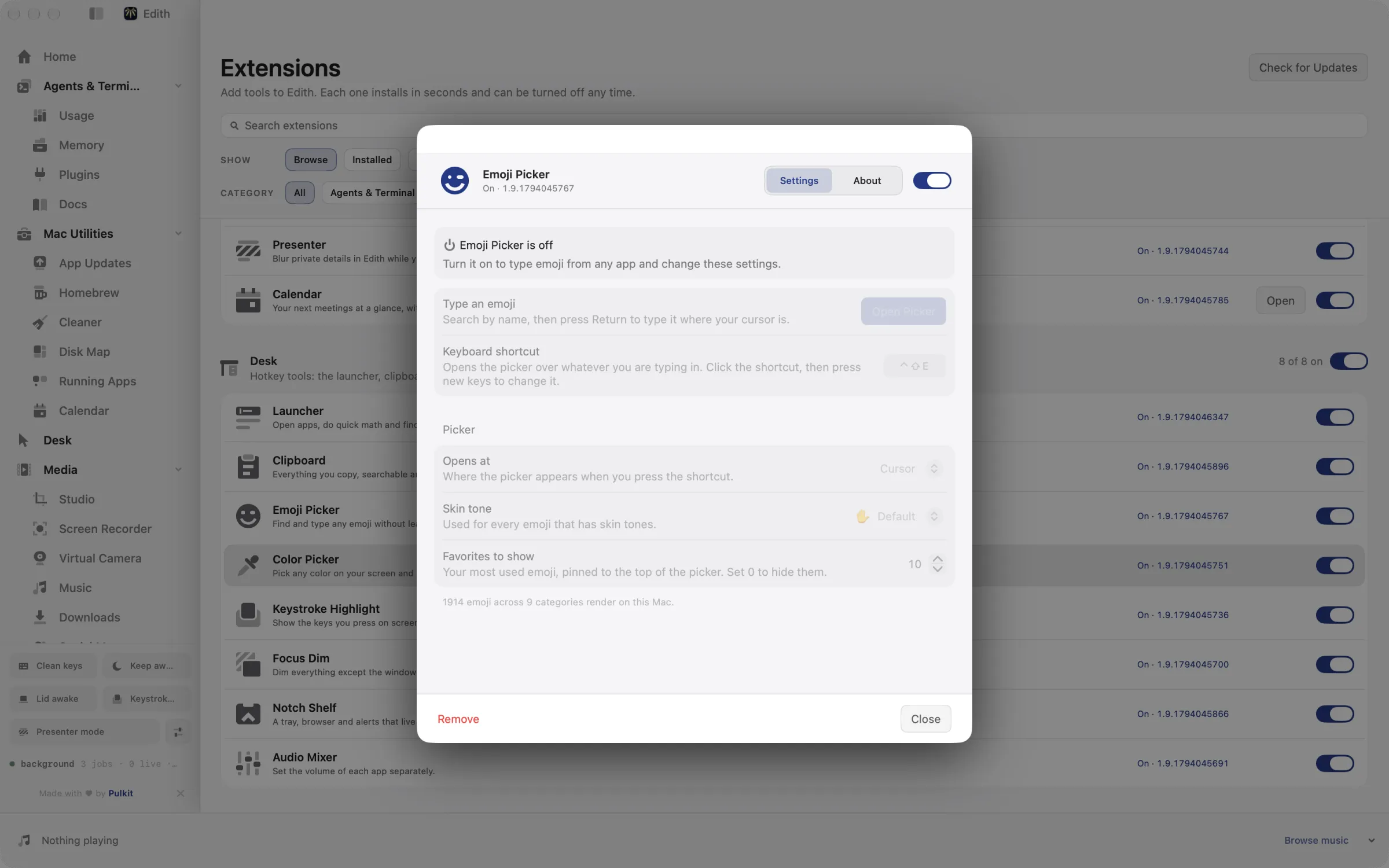
Emoji Picker is an Edith extension that opens a searchable emoji grid in any app when you press ⌃⇧E and types the emoji you choose where you were writing.
macOS has an emoji viewer, but it mixes emoji with every other symbol and opens wherever the system decides. Emoji Picker opens next to your cursor on its own shortcut, searches as you type, and puts the emoji you choose into the app you were already typing in. Press Return to type it, or Option-Return to copy it instead when you want to paste it somewhere else. Arrow keys move through the grid, so you never have to reach for the mouse.
Search matches emoji names and their keywords, so heart, thumbs or party narrow the grid straight away. Shortcode habits carry over from chat apps too: colons and underscores are ignored, which means :thumbs_up: finds thumbs up. The emoji you use most are pinned at the top of the picker, ten by default, and you can keep up to 24 there or turn the row off. Only emoji your Mac can draw are listed, so you never insert one that appears as an empty box on your own screen.
Skin tones work in two ways. Pick a default tone in settings and every emoji that supports one uses it. For a single emoji, select it and press Option-Command-1 to 5 to type it in that tone, or right-click it to see every version. It suits anyone who answers messages, writes changelogs or comments on pull requests all day and wants emoji as quickly as any other character.
Updated

How to type emoji on Mac with a shortcut
- 1
Press ⌃⇧E
The picker opens next to your cursor, in any app.
- 2
Search by name
Type happy, thumbs or a shortcode to narrow down the list.
- 3
Press Return
The emoji is typed into the app you were using.
- 4
Set a skin tone
Choose a default tone in settings for emoji that support one.
Keyboard shortcut
| Shortcut | Action | What it does |
|---|---|---|
| ⌃⇧E | Emoji picker | Opens the emoji picker over whatever you are typing in |
Works from any app. You can record a different shortcut in Edith's settings.
What it does
Type an emoji anywhere
Search by name and insert it where your cursor is.
⌃⇧EDoes macOS do this already?
Does macOS have an emoji picker?
Yes. Press Fn-E, the Globe key with E, or Control-Command-Space to open the Character Viewer, which has emoji search and a recently used section. Emoji Picker changes how you get there and what happens next: it has its own shortcut, opens beside your cursor, accepts shortcode-style searches, keeps a most-used row whose size you set, offers per-emoji skin tones from the keyboard and can be driven from the terminal.
Use cases
React in a chat without touching the mouse
In Slack, Discord or Messages, press ⌃⇧E while the message box has focus, type fire and press Return. The emoji lands in the box and the cursor stays there, so you keep typing your reply.
Add gitmoji to commit messages
While writing a commit message in your editor or terminal, open the picker, search bug or sparkles, and the emoji is typed at the cursor in front of your message. Your recent picks stay at the top, so the next commit is two keystrokes.
Put an emoji where typing does not work
Some fields ignore typed input from other apps. Press Option-Return to copy the emoji instead, then paste it into a Finder rename field, a design tool text layer or a form.
From the terminal and your coding agents
Every example returns JSON with --json, and agents can call the same thing over MCP.
$ ed emoji pick
$ ed emoji ls --search heart --limit 10
$ ed emoji insert tada
$ ed emoji tone medium| Command | MCP tools |
|---|---|
ed emoji | edith_emoji_* |
Connect Claude Code, Codex, Cursor or another client through the Edith MCP server.
Permissions and requirements
Permissions
- Accessibility, so Edith can type the emoji into the front app; without it the picker beeps and Option-Return still copies the emoji
Requirements
- macOS 14 or later on Apple silicon
- Emoji newer than your macOS version stay hidden until an update lets your Mac draw them
Recent changes
- ImprovedDraw cached glyph images instead of live emoji text.v0.0.381,
Frequently asked questions
What is the keyboard shortcut for emoji on a Mac?
macOS opens its Character Viewer with Fn-E or Control-Command-Space. Emoji Picker uses ⌃⇧E by default, and you can record another shortcut in its settings if that combination is taken in one of your apps.
Why are some emoji missing from the picker?
The list is filtered to emoji the Apple Color Emoji font on your Mac can render as a single picture. Brand new emoji appear after a macOS update adds them to that font.
How do I change the skin tone of emoji on a Mac?
In Emoji Picker settings, choose the default yellow or one of five skin tones and it applies to every emoji that supports tones. For a one-off, select the emoji and press Option-Command with 1 to 5, or right-click it and pick the version you want.
Can an AI agent type emoji with it?
Yes. The ed emoji commands are available as MCP tools such as edith_emoji_ls, edith_emoji_insert, edith_emoji_tone and edith_emoji_clear. An agent can look an emoji up by name, type it into the front app, change your default tone or clear the most-used list.
Does Emoji Picker cost extra?
No. It is part of the set of extensions unlocked by one Edith purchase, with no separate fee and no subscription.
Compare and alternatives
- Edith vs Raycast: One-Time Mac Toolkit ComparedEdith vs Raycast on Mac: a free launcher with paid AI plans, or one payment for a launcher plus agent usage, MCP control and Mac utilities.
- Maccy Alternative for Mac: Clipboard, CLI and MCPA Maccy alternative for Mac: clipboard history with category chips, color swatches and ⌘1 to 9 picks, plus a CLI and MCP tools for agents. Part of Edith.
More in Desk

Get Edith.
From $35 once. No subscription. No account.
Needs a license key · macOS 14 or later on Apple silicon · 6.4 MB