 Edith
Screen Recorder
Screen recorder for Mac with time-lapse
Record a display or a few windows in real time, or squeeze hours of work into a short time-lapse.
Screen Recorder is an Edith extension that records a display or selected windows on your Mac, either as a normal video or as a time-lapse that saves one frame every few seconds.
Standard mode records at 30 or 60 frames per second, capped at 1080p, 4K or the source resolution up to 8K, with the cursor shown or hidden. Audio is optional: system audio for the whole desktop or, when you record windows, only the audio of the apps you picked, plus a microphone if you want your voice. Recording keeps running if you leave the page, and a toggle keeps the Mac and screen awake until you stop.
Time-lapse mode is built for long sessions. Instead of capturing continuously, it saves one frame every 1, 2, 5, 10, 30 or 60 seconds and plays them back at 30 frames per second, so an hour at a five second interval becomes a 24 second clip. Any audio you include is sped up to match. It is a light way to capture a whole afternoon of design work, a long build or a coding session without filling the disk.
Recordings are written in five minute segments, and recording stops by itself to leave 512 MB free on the drive. When you are done, select a recording in the library and export it as compact HEVC up to 1080p, high quality HEVC at the recorded resolution, the original video without re-encoding, or ProRes 422 for editing.
Updated
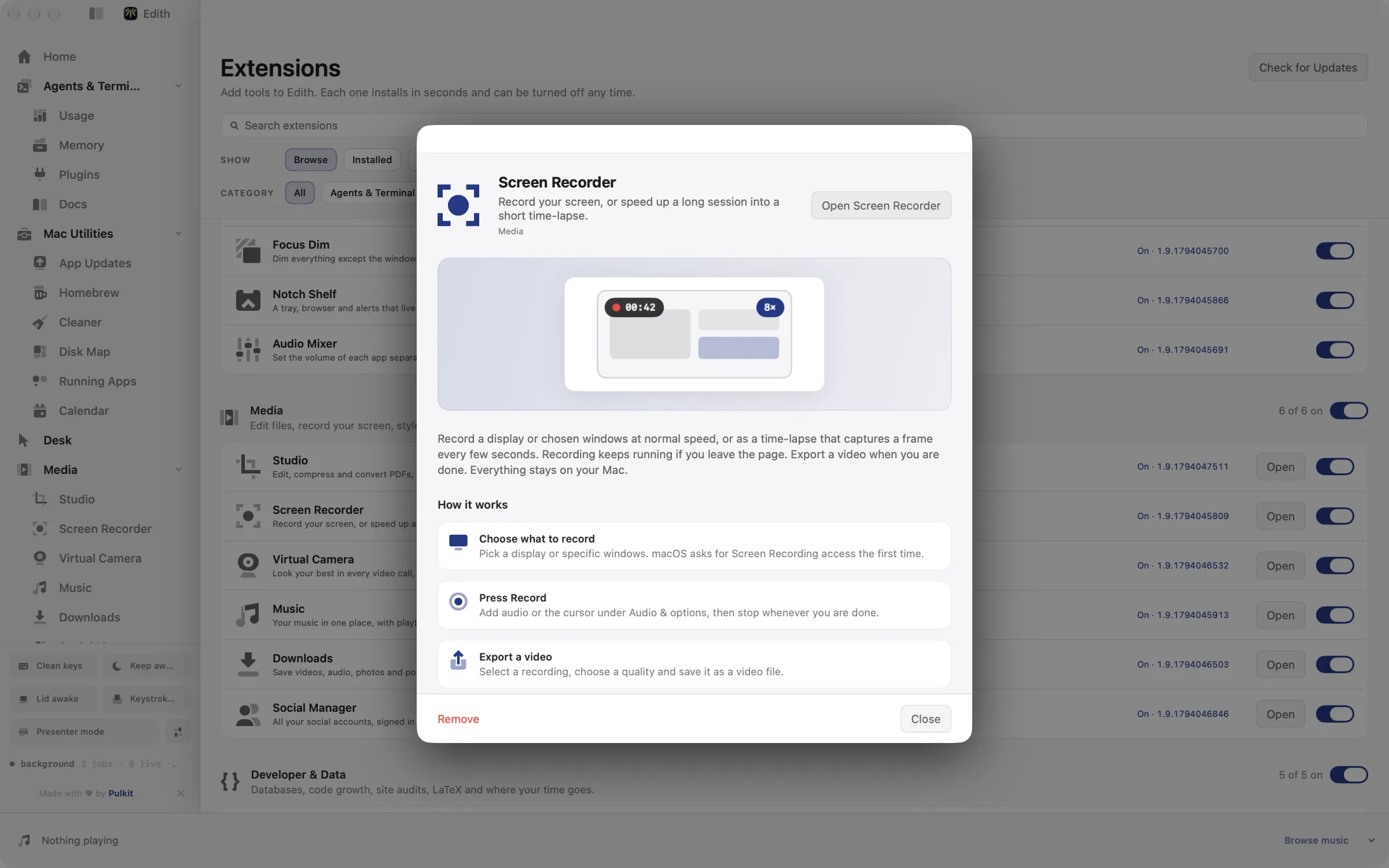
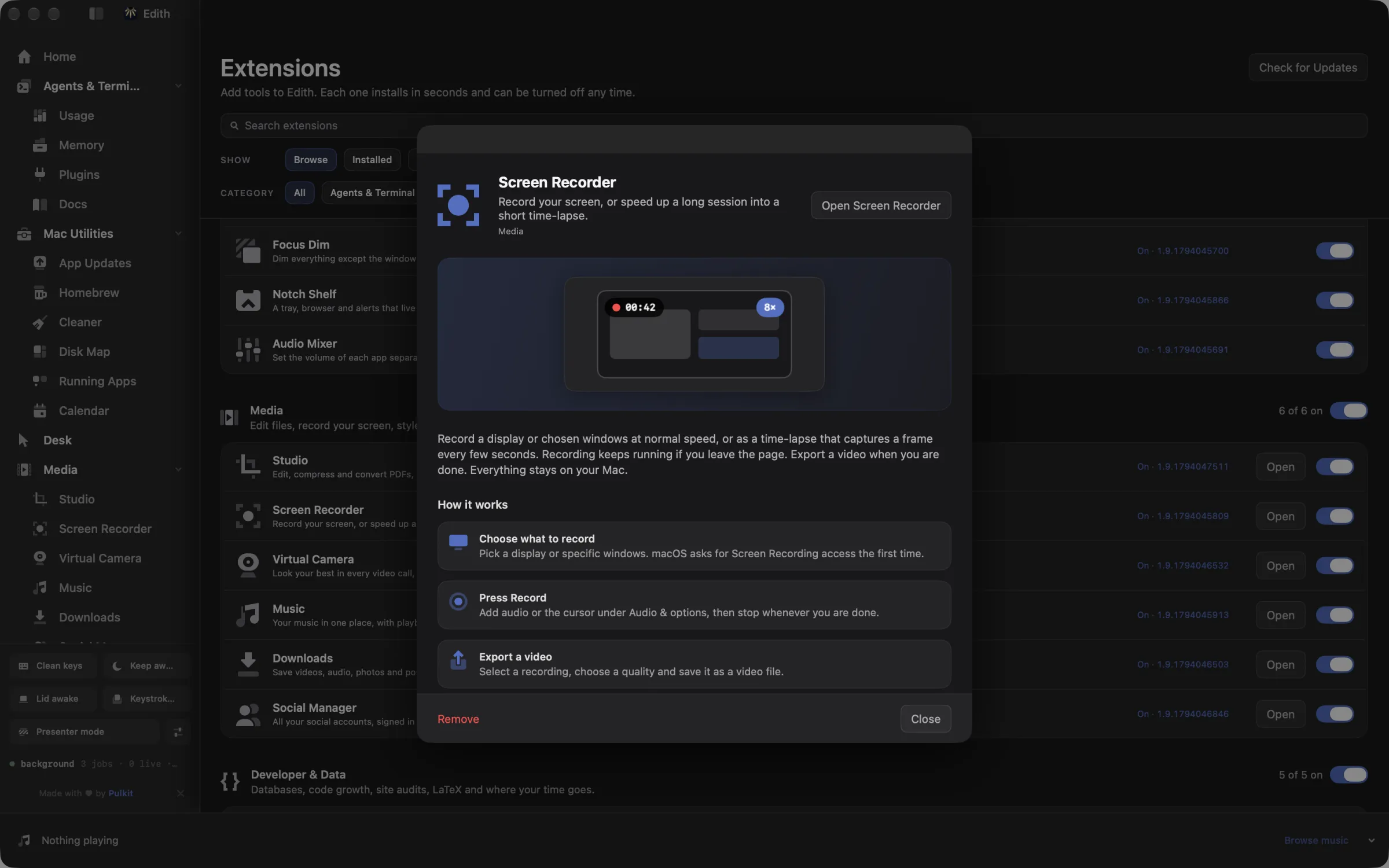
How to record your screen on a Mac
- 1
Choose what to record
Pick a display or specific windows. macOS asks for Screen Recording access the first time.
- 2
Press Record
Add audio or the cursor under Audio & options, then stop whenever you are done.
- 3
Export a video
Select a recording, choose a quality and save it as a video file.
What it does
Record your screen
Record a display or chosen windows, with audio if you want.
Make a time-lapse
Capture a frame every few seconds and export a short video.
Does macOS do this already?
Can a Mac record its screen without extra software?
Yes. Shift-Command-5 opens the Screenshot toolbar, which records the whole screen or a selected area, optionally with a microphone, and QuickTime Player can do the same. Neither has a time-lapse mode or a way to record chosen app windows on their own with just their sound. Screen Recorder adds those, along with resolution caps, export presets and a library of past recordings.
Use cases
Record a bug report or walkthrough
Pick only the app window, include its audio and your microphone, and record at 60 fps so scrolling and animations stay smooth. Export compact HEVC to keep the file small enough to attach to an issue.
Time-lapse a design or coding session
Set a 10 second interval and record a display for an afternoon. Four hours turns into under a minute of video that shows how the work came together, which suits a portfolio post or a sprint demo.
Watch a long process without sitting there
Point a time-lapse with a 30 or 60 second interval at an overnight install, a data migration or a render, leave keep awake on, and scrub through the result in the morning.
Permissions and requirements
Permissions
- Screen Recording, to capture displays and windows
- Microphone, only if you record your voice
Requirements
- macOS 15 or later on Apple silicon; on macOS 14, record with the Screenshot toolbar (Shift-Command-5) instead
- Free disk space; recording stops when the drive is down to 512 MB free
Recent changes
Frequently asked questions
Can I record internal audio on a Mac with it?
Yes. Turn on System audio to capture sound from apps across the desktop, or, when recording windows, Selected app audio to capture only those apps. No separate audio driver is needed.
How long can a recording be?
As long as the disk allows. Edith stops the recording to leave 512 MB free on the drive. Time-lapse mode uses far less space per hour because it saves one frame every few seconds instead of every frame.
Which export option should I choose?
Compact HEVC up to 1080p for sharing, high quality HEVC to keep the recorded resolution, Original to save without re-encoding, and ProRes 422 when you plan to edit the footage. The first three save MP4 files and ProRes saves a MOV.
Can I hide the mouse pointer in the recording?
Yes. Turn off Include cursor under Audio & options before you press Record, for example when you plan to add your own zooms or highlights later.
Can I start a screen recording from the terminal?
Screen Recorder itself has no ed command. If a script or a coding agent needs to record, Studio's ed studio record start and stop capture a display or window into a Studio video.
Does Screen Recorder cost extra?
No. Screen Recorder is one of the media extensions included in Edith's one-time purchase, with no watermark on your exports.
Guides
Compare and alternatives
Used in
More in Media

Get Edith.
From $35 once. No subscription. No account.
Needs a license key · macOS 14 or later on Apple silicon · 6.4 MB