 Edith
Virtual Camera
Virtual camera for Mac
One camera for every call app, already framed and styled the way you like.
Virtual Camera is an Edith extension that adds a camera called Edith Camera to your Mac. Zoom, Google Meet, FaceTime and other video apps can select it, and it shows your framed and styled webcam, a video file or a shared window.
Every video app has its own background and touch-up settings, and they never quite match. Virtual Camera moves that work into one place. Edith reads your real camera, applies your framing and look, and sends the result to Edith Camera, which you pick once in each meeting app. Change something in Edith and every app sees the change.
Zoom and pan to frame the shot, choose a look such as natural, bright, studio, warm, cool, film, mono or noir, and blur the background, fill it with a color or replace it with your own image. Overlays add a name tag, a logo, a clock or a border, and mirroring flips the whole output, overlays included. Save a combination as a scene, then switch scenes with Command-1 to Command-9 on the page or ed camera scene next from the terminal.
The source does not have to be a camera. Play a video file on a loop or once, or use a screen or window as the feed. When you need to step away, Control-Option-Command-V pauses Edith Camera behind a card with your own message, and pressing it again goes live. Other pause styles show a blank frame, hold the last frame, or stop capture entirely. The composed output can also be recorded to an MP4.
Updated
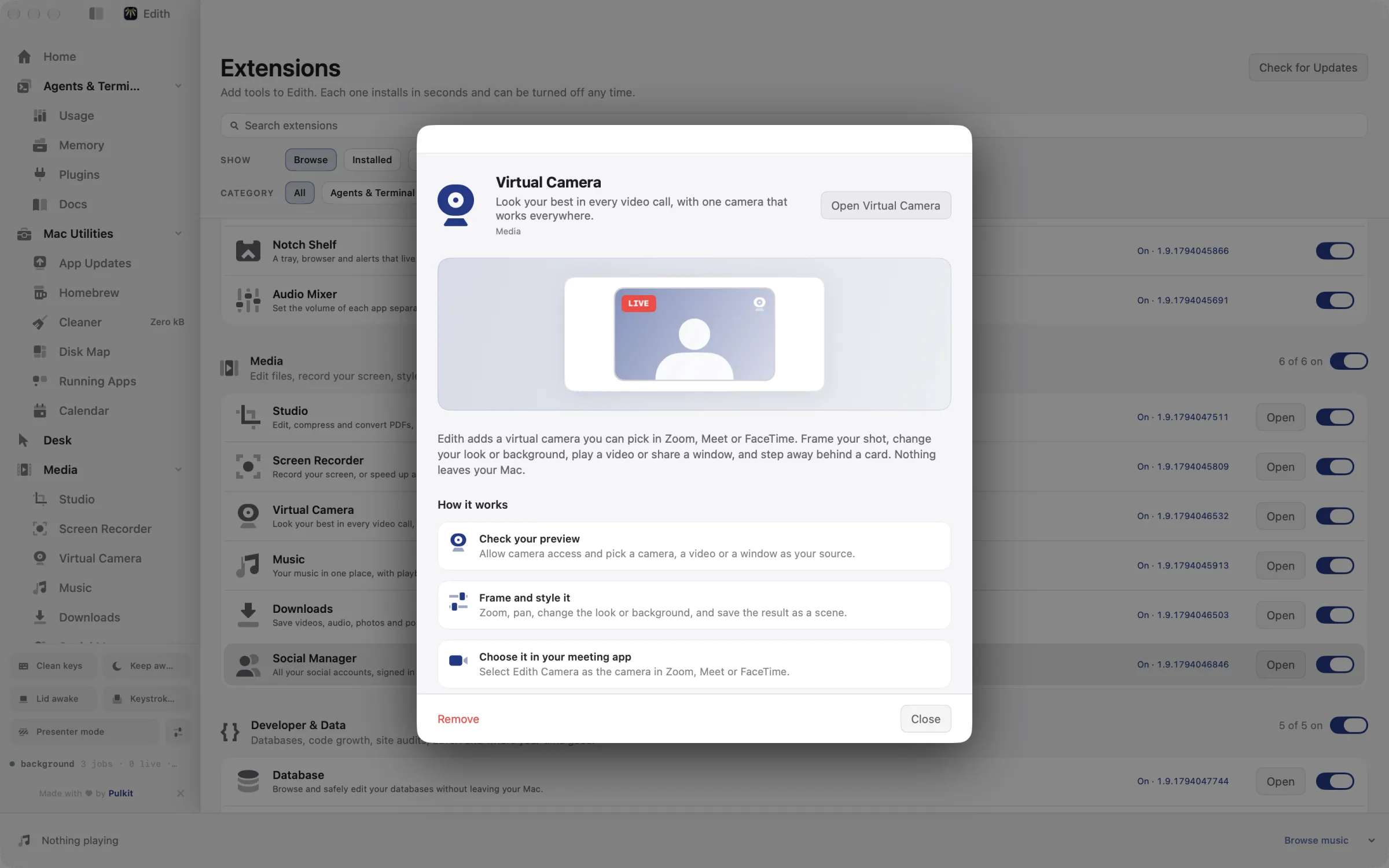
How to use a virtual camera in Zoom, Meet or FaceTime on Mac
- 1
Check your preview
Allow camera access and pick a camera, a video or a window as your source.
- 2
Frame and style it
Zoom, pan, change the look or background, and save the result as a scene.
- 3
Choose it in your meeting app
Select Edith Camera as the camera in Zoom, Meet or FaceTime.
- 4
Step away privately
Pause behind a card, a blank screen or a frozen frame, then go live again.
Keyboard shortcut
| Shortcut | Action | What it does |
|---|---|---|
| ⌃⌥⌘V | Virtual Camera | Pauses Edith Camera behind a card, or goes live again |
Works from any app. You can record a different shortcut in Edith's settings.
What it does
Use a virtual camera in calls
Frame and style your camera for Zoom, Meet or FaceTime.
Change your call background
Blur or replace what is behind you.
Does macOS do this already?
Does macOS have background blur and framing for video calls?
Partly. While an app is using the camera, Video Effects in Control Center offers Portrait mode blur, Studio Light and Center Stage on supported cameras, and on macOS Sequoia or later the Video menu in the menu bar can replace your background during a call. Those effects are tied to the physical camera. Virtual Camera adds a separate camera with saved scenes, color looks, name tags and logos, video and window sources, and a privacy pause card that behaves the same in every app.
Use cases
The same look in every meeting app
Set background blur and a warm look once, then choose Edith Camera in Zoom, Google Meet and FaceTime. Moving from a client's Meet call to a team Zoom keeps the same framing and background.
Step away without leaving the call
Press Control-Option-Command-V to show a card that says you will be right back while you answer the door, then press it again to come back live. Nobody sees the empty chair or the room in between.
Show an app or a clip through the camera
Use an app window as the camera feed when a webinar tool only lets guests share a camera, or play a prepared demo video at the right moment instead of fumbling with screen sharing.
Record an intro with your live setup
Run ed camera record start --path intro.mp4 to capture a short intro with the same overlays and background you use in calls, then stop it with ed camera record stop.
From the terminal and your coding agents
Every example returns JSON with --json, and agents can call the same thing over MCP.
$ ed camera status
$ ed camera scene list
$ ed camera scene next
$ ed camera pause --style card| Command | MCP tools |
|---|---|
ed camera | edith_camera_* |
Connect Claude Code, Codex, Cursor or another client through the Edith MCP server.
Permissions and requirements
Permissions
- Camera, so Edith can read your webcam
- Approve the Edith Camera extension in System Settings, General, Login Items & Extensions, Camera Extensions
- Screen Recording, only when you use a screen or window as the source
Requirements
- macOS 14 or later on Apple silicon
- A built-in or external camera, unless you use a video file or window as the source
- Edith in the Applications folder, since macOS only installs camera extensions from apps there
Recent changes
- FixedThe installed camera no longer fails its own startup check, so it turns on again.v1.0.16,
- FixedThe ed camera commands no longer disappear when turning the camera off was interrupted.v1.0.15,
- ImprovedThe download is less than half its previous size.v1.0.13,
- FixedA camera built for an earlier compatible version of Edith is no longer rejected.v1.0.4,
- FixedAn older installed camera is replaced instead of rejected.v1.0.3,
Frequently asked questions
How do I choose Edith Camera in Zoom, Meet or FaceTime?
In Zoom, open the camera menu next to Start Video or the Video settings and choose Edith Camera. In Google Meet, pick it in the camera menu or under Settings, Video. In FaceTime, choose it from the Video menu in the menu bar.
Why does macOS ask me to allow a camera extension?
Edith Camera is a system camera extension, and macOS requires you to approve those once in System Settings under General, Login Items & Extensions, Camera Extensions. After that it appears in every app's camera list. ed camera extension status shows whether it is installed and approved.
Can I blur or replace my background without a green screen?
Yes. Edith separates you from the background with Apple's on-device person segmentation, then blurs it with the strength you choose, fills it with a color, or swaps in an image.
Can an agent switch my camera scene?
Yes. Edith's MCP server includes tools such as edith_camera_scene_next, edith_camera_pause and edith_camera_resume, so an agent or a script can change scenes or pause the camera before a meeting, matching the ed camera commands.
Does Virtual Camera change my microphone?
No. Edith Camera only provides video, and your meeting app keeps using whichever microphone you select. The audio option in Edith applies to recording the sound of a video or screen source.
Is Virtual Camera part of Edith's one-time purchase?
Yes. Virtual Camera is included with Edith, so the backgrounds, looks, overlays and scenes need no separate subscription.
More in Media

Get Edith.
From $35 once. No subscription. No account.
Needs a license key · macOS 14 or later on Apple silicon · 6.4 MB